

In this article we’ll discuss how someone can own a server and manage it. I won’t get too technical about servers, because it confuses people and mostly causes misunderstandings.
Simply put, a server is a computer specially designed to run programs and provide services to users simultaneously (taking place or happening at the same time; at once).
The word specially doesn’t mean the computer has to be shaped like the server most people know — for example, most people picture a server like the image below.
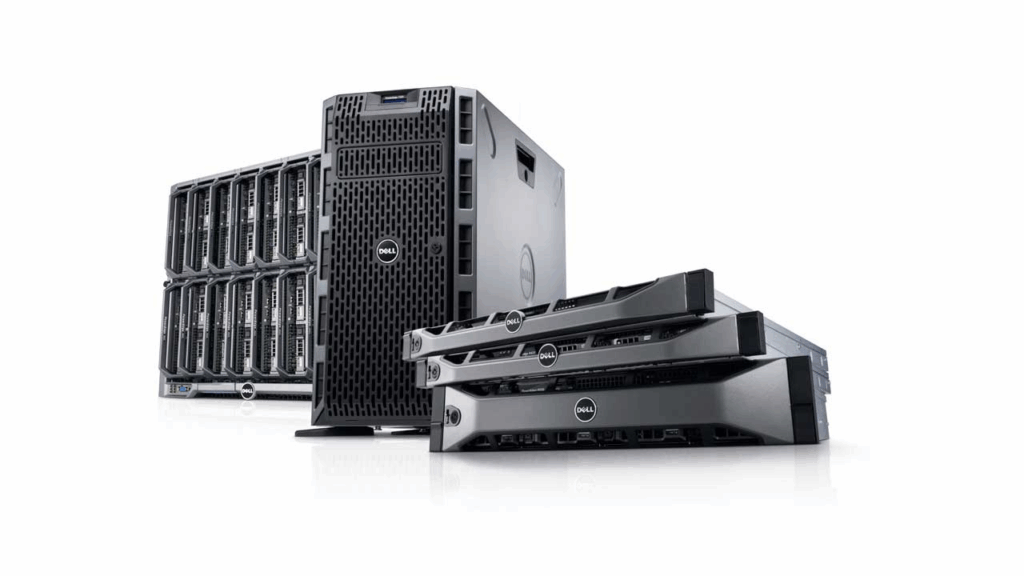

In reality, your own PC / laptop can also be a server, because it can run programs that other people can access — whether offline or online.
But normally we want the server we build to run programs we own / buy and be accessible by other people. To achieve that, besides the server itself you need an internet connection with a Public IP and a domain, so people don’t have to memorize your public IP address.
In this article I won’t explain how to turn your PC / laptop into a server — instead, renting a server and managing it. In theory, when you rent, you implicitly own it too, but only for as long as you pay for it.
Purchasing the Server
First you have to buy / rent a server, and there are many types — Shared Hosting, VPS, Cloud VPS, Cloud Hosting and more. I’ll give a simple overview with an analogy.
Shared Hosting
You rent a room in a boarding house. You share the kitchen, bathroom, and other facilities with many tenants. Cheap, but the resources are limited and performance can be affected by other tenants
VPS
You rent an apartment in a large apartment building. You have your own kitchen, bathroom, and living room, isolated from your neighbors. Although you share the same physical building, you have CPU, RAM, and storage resources allocated specifically for you. You hold the “key” (root access) to manage your own apartment.
Cloud Hosting
You rent an apartment in a very modern apartment complex. The complex has many interconnected buildings. If your apartment suddenly needs more space, you can immediately “borrow” space from another building in the same complex without moving. This is very flexible — it can adjust to your needs dynamically.
Cloud VPS
This combines the VPS and Cloud Hosting concepts. You rent an apartment in a very large modern apartment complex (like Cloud Hosting), and your apartment is also isolated with dedicated resources like a VPS. The difference: your “apartment” isn’t tied to a single physical building — it’s distributed across the whole complex. If one building fails, your “apartment” can move to another building without you noticing.
Dedicated Server
You buy or rent a private house (not an apartment). The whole house, land, and its facilities are fully yours. No neighbors share the physical resources with you. You have full control over everything in the house, from the foundation to the roof.
In conclusion, if you look at the image at the beginning of this article, that’s a Dedicated Server — and owning one requires a fairly high cost, time, effort, and professional-level skills. Besides that, your PC / laptop can also be categorized as a Dedicated Server.
But for this article, let’s stick with VPS / Cloud VPS — even though the explanations above differ slightly, from our perspective as the buyer it’s the same.
You’ll be given choices of Memory, Storage and CPU at different price ranges. You’re also given a Public IP without having to worry about managing the network. Here’s an overview of the server I rent at IDCloudHost.
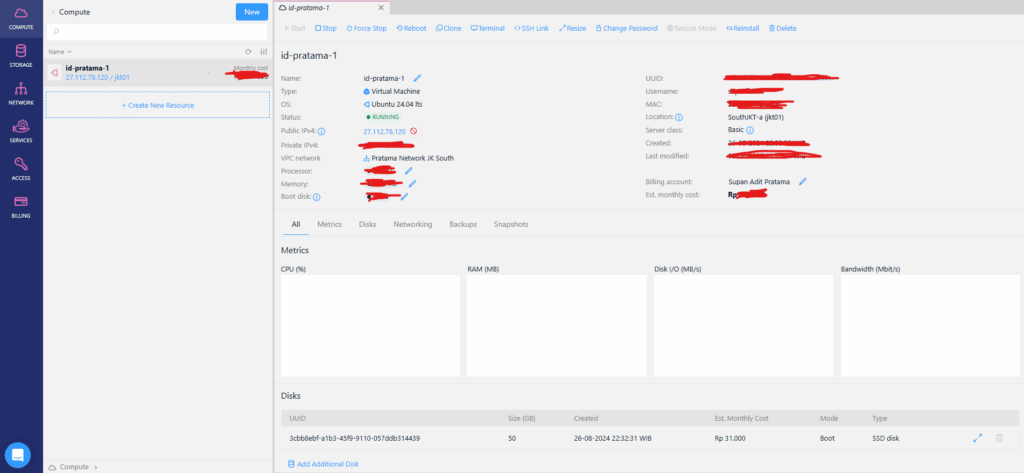
If you notice, I have the public IP 27.112.78.120. (Wait, that info can be seen and hacked… ) Yep, that’s right…. please hack me 🙏😁.
The image above is the result of creating a new instance by pressing the New button — then you’ll be given options like the image below.
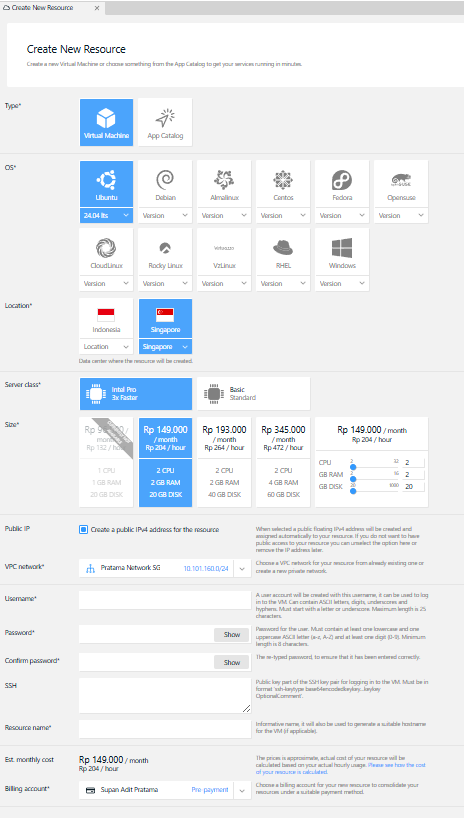
Based on the image above, you get to choose the operating system, server location, specifications, username, password, resource name and the total price.
The SSH and VPC Network parts can be ignored — if it’s a new account you’ll probably have to create a VPC Network, and you can use the default configuration, just keep clicking next until it’s done.
Once everything above is finished and you have a public IP, your server is accessible — then start configuring the reverse proxy and buying a domain.
FAQ
How do I access the server?
For Linux users — whether Fedora, Ubuntu, CentOS, Rocky Linux, etc. — you can access it with the ssh command in the terminal or command line, like below
ssh dadang@234.34.22.12You can’t access my private SSH server with the IP exposed above… Huh.. why is that? 😁 Secret…. figure it out yourself…
Where’s the graphical interface?
Linux-based servers have no interface, so terminal skills are really required.
How do I deploy a frontend or backend application like Java, Angular, NodeJS, PHP, etc.?
The easiest way is to try it yourself on the Ubuntu OS on your own laptop / PC — figure out how to run that backend / frontend program on Ubuntu OS. Once you know how, and the step-by-step, what you learned applies to the server you rent. It’s just that locally you probably run it at http://localhost:3000.
So once you have a server, you can run it on the server and access http://<your-server-public-ip>:<application-port>
Question: But when we close the terminal, the application dies? Well, you can learn how to keep the application running in the background.
How can the server be accessed via a Domain?
The Domain itself must be bought first, then you point the domain to your server’s public IP, and install a reverse proxy — like NGINX, Caddy, Traefik, etc.
Mantap, nextnya setup docker di server mang 😀
Siap 👍