
Want to do image generation locally because it’s usually paid and expensive? Or have an image generation model but don’t know how to use it?
Requirements
To do image generation locally, there are a few requirements you need to meet.
- A laptop / PC equipped with a GPU (NVIDIA especially, with the RTX series). What about the GTX series? It may work, but image generation will be very slow, even if the GPU’s memory capacity is decent.
- Install Python 3.10.6. If Python is already on your laptop, you can actually install many different Python versions side by side. On Windows you can download the official Python installer; on Linux / Mac you can use Pyenv.
- Install Git — this one is easy, just download it and click next all the way through.
Wait…. before we go further, note that image generation methods differ depending on the model. In the Open Source world there are popular models like Stable Diffusion, Flux, Pony Diffusion (a derivative of Stable Diffusion), and others.
But this article will focus on using Stable Diffusion with Stable Diffusion Web UI — a web user interface that makes image generation with Stable Diffusion models easier. If you’re more interested in Flux, I’ll write a separate article, since running that model works differently.
Step by step setup
Let’s continue with the Stable Diffusion Web UI setup. The first thing to do is download the source code with the command below, and store it wherever you like.
git clone https://github.com/AUTOMATIC1111/stable-diffusion-webui.gitThen go into the stable-diffusion-webui directory and open the webui-user.bat file with Notepad / VSCode / VIM / Nano or any other text editor, then configure it roughly like the image below.
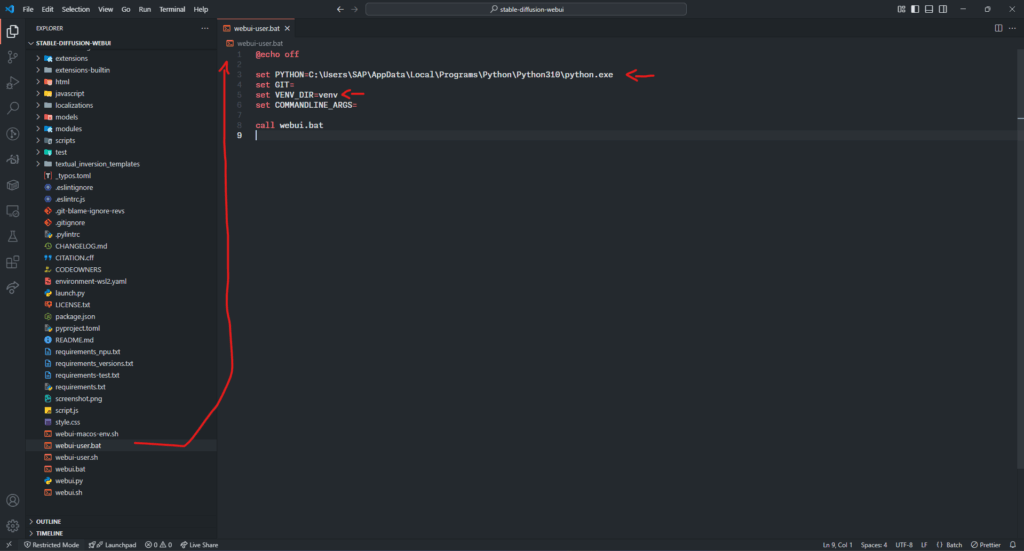
Note about the PYTHON….. variable
C:\Users\SAP\AppData\Local\Programs\Python\Python310\python.exe
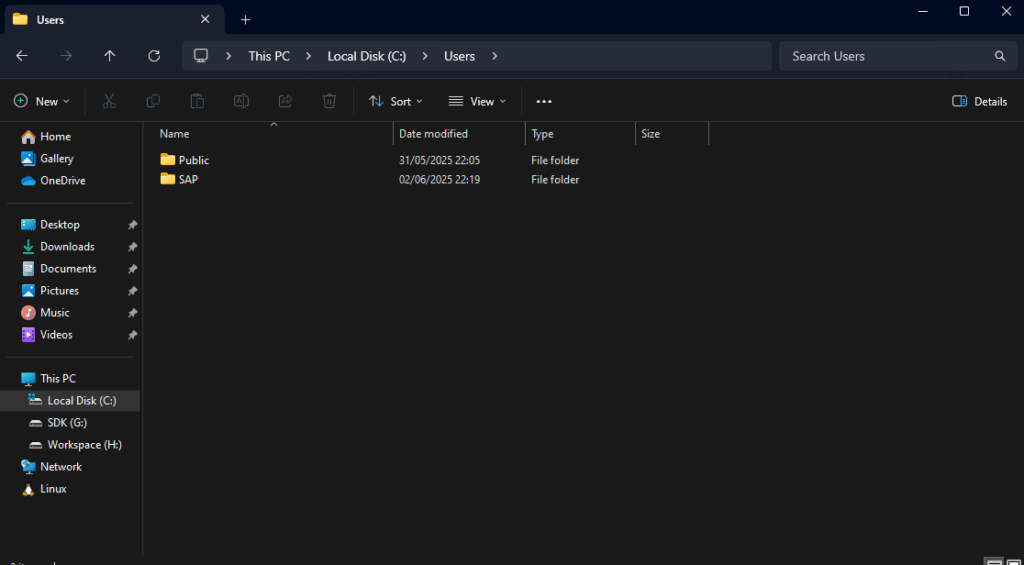
The part in bold must be replaced with your Windows username. In my case it says SAP because my Windows username is SAP — you can check your username in File Explorer at C:\Users
The parts to edit are the PYTHON and VENV_DIR variables — the rest can be left as is. But if you’re using an NVIDIA GPU, you can configure COMMANDLINE_ARGS with the extra –xformers flag as below.
set COMMANDLINE_ARGS=--xformersOr if your GPU memory is under 4 GB you can use this extra flag
set COMMANDLINE_ARGS=--xformers --lowvramYou can also use –medvram, but if your VRAM is more than 12 GB you can just remove it to use full power and full speed.
The step above can also be done by Linux / Mac users in the webui-user.sh file
Now let’s actually run the program: double-click webui-user.bat on Windows, or webui.sh on Linux / Mac / WSL2. (Wait, why not webui-user.sh on Linux? Because on Linux that file is called from webui.sh.) On Windows it’s the opposite.
After you open the .bat file, Windows will automatically open a Terminal / CMD like the image below, which runs the program right away.
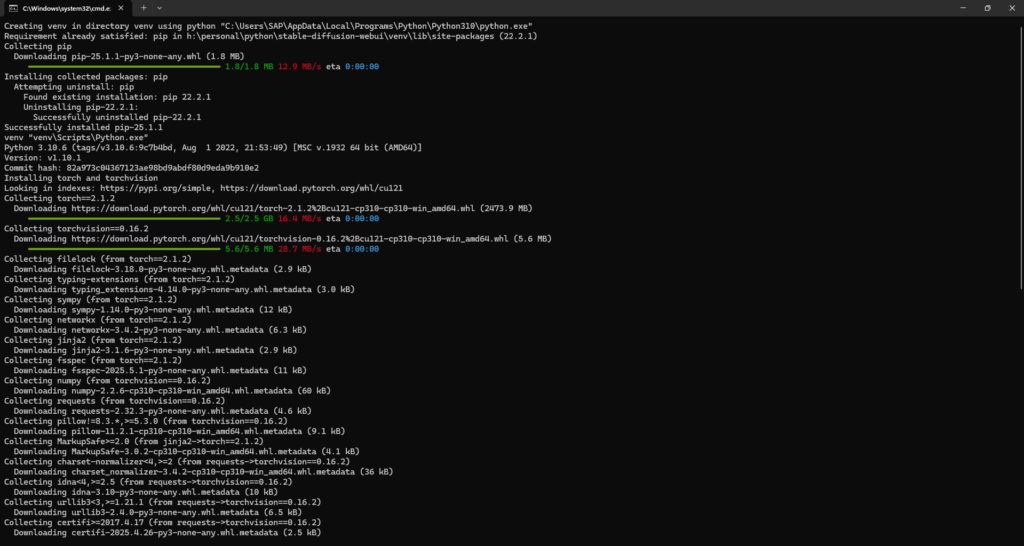
This process takes a long time depending on your internet speed and SSD / HDD — and it’s slow the first time you run it because it automatically downloads several Python packages. If you’ve done this before, it will be much faster.
Once the process above completes, the end result looks roughly like this.
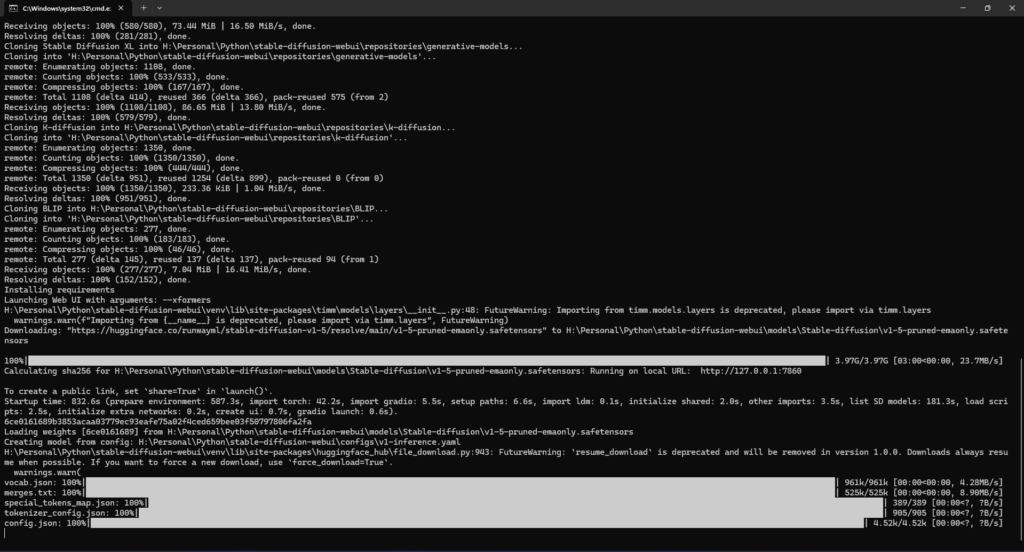
Normally you’ll be automatically directed to http://127.0.0.1:7860 with a browser that opens itself once the process above finishes. If not, you can click and open the link yourself.
For your information, Stable Diffusion Web UI automatically downloads the default model, Stable Diffusion 1.5, which you can pick once you open the UI in your browser — it looks roughly like the image below.
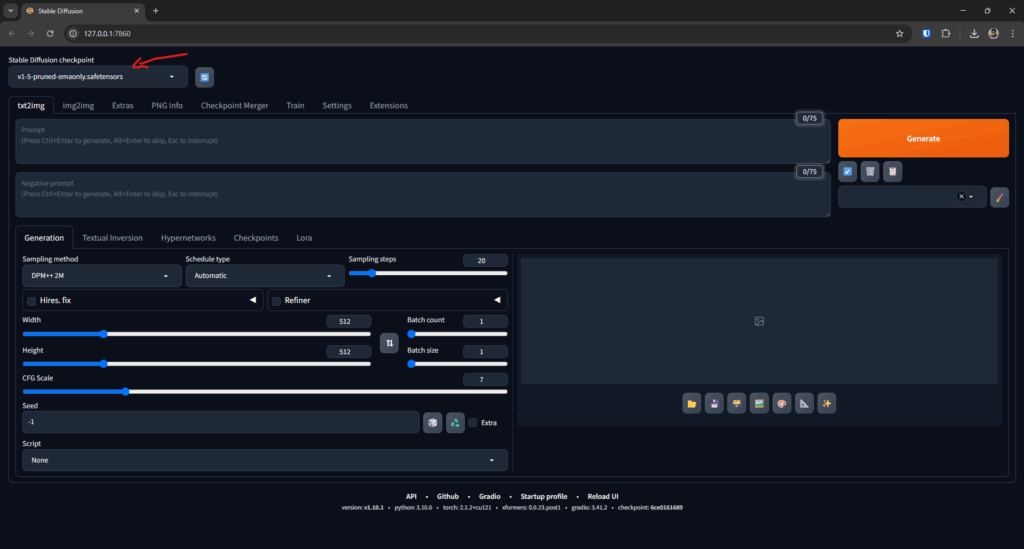
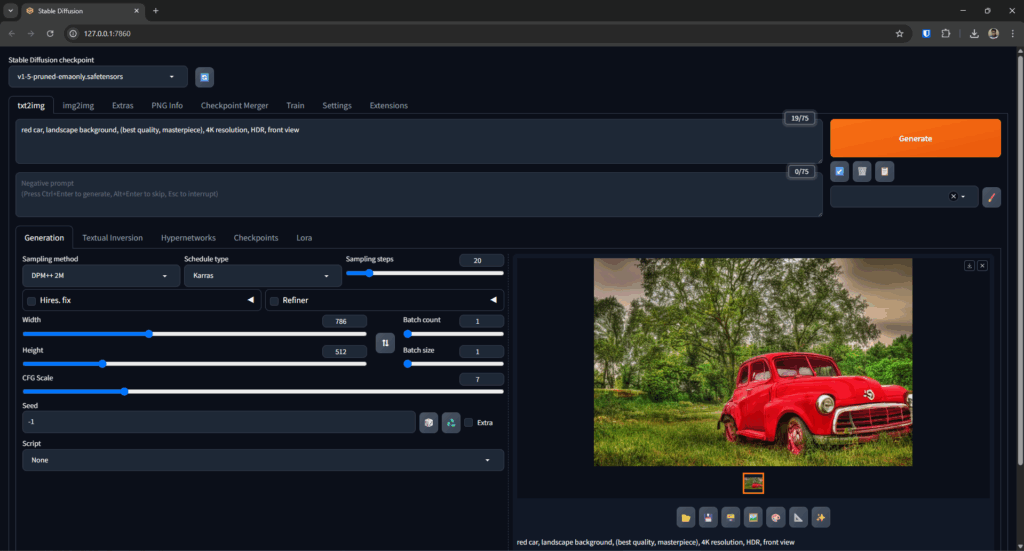
From there you can play around and try all the features in Stable Diffusion Web UI, but here’s an example.
Configuration
Positive Prompt: These are the words you want and expect from the generated image
Negative Prompt: Information that should NOT appear in the image — for example, when drawing a woman you can put NSFW in the prompt to avoid indecent images. Because most Stable Diffusion models are UNCENSORED.
Width & Height: The image resolution, and this MUST be changed — e.g. 1024×768 for landscape or 768×1024 for portrait, or fill in whatever you want. But the higher the resolution, the harder the GPU works. That’s why the resolutions above are enough — if you want 4K, just upscale instead, since it’s cheaper and lighter on the GPU than generating at that size.
You can learn the other configurations further by reading around the internet or the official documentation.
The thumbnail in this article was also generated with Stable Diffusion…
FAQ
How do I use other models?
You can download Stable Diffusion models at https://civitai.com/ or https://huggingface.co/. I’ll write a separate article on how to use them.